📘 DXCluster Manual
🇬🇧 What is DXCluster
The DXCluster app is a graphical Telnet client that lets you receive and send DX spots from DX Spider servers.
You can view real-time spots from other radio amateurs, send your own spots, and when used together with MiniBook, even automatically control your transceiver.
🇬🇧 Main Windows and Tabs
The app consists of three tabs at the top:
🧭 1. Spots Tab
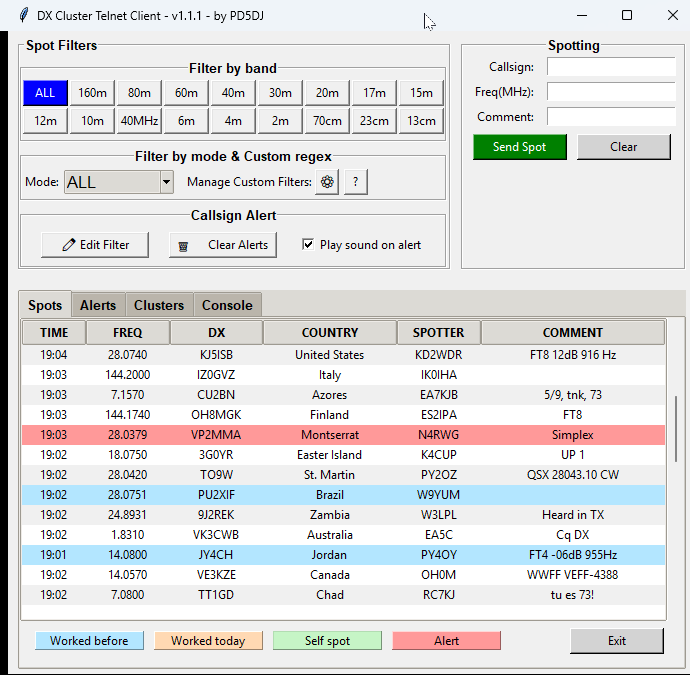
Shows all received spots in a table with columns:
| Time | Frequency | DX | Country | Spotter | Comment |
|---|
Color Legend:
-
💚 Green – your own callsign (self spot)
-
💙 Blue – station you have worked before
-
🧡 Orange – station you have worked today
- ❤️ Alert (from the favorites list in Callsign Alert)
👉 Tip: double-click a spot to (via MiniBook) automatically tune your transceiver to the frequency and mode.
🌐 Clusters Tab
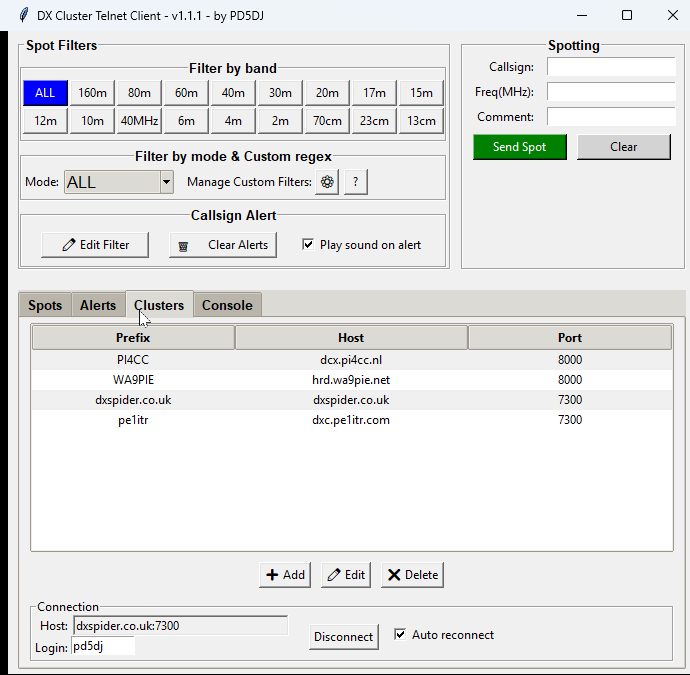
Here you manage the list of DX Cluster servers (hosts) you can connect to.
You see a table with columns Prefix, Host, and Port.
Buttons:
-
➕ Add – add a new cluster
-
✏️ Edit – edit the selected host
-
❌ Delete – remove from the list
Connecting
Below the table you see:
-
Host – the address and port (e.g.
dxcluster.pi4cc.nl:8000) -
Login – your callsign
-
Connect / Disconnect – start or stop the connection
-
Auto reconnect – enables automatic reconnection when the session drops
💬 Console Tab
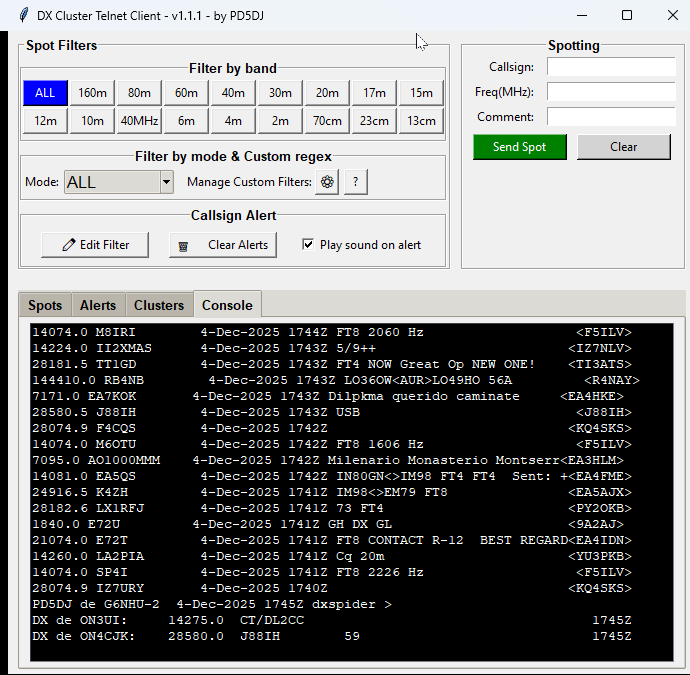
Shows what happens “under the hood”:
-
Connection established or lost
-
Incoming spot lines
-
Send confirmations
-
Any error messages
Useful mainly to verify that the connection is functioning properly.
🇬🇧 Filtering Spots
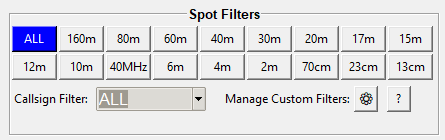
At the top of the window you find the “Spot Filters” block.
This allows you to filter incoming spots by band, mode, or specific patterns.
🎚️ Band Filter

Click a band (160m, 80m, 40m, 20m, …, 70cm, 23cm, etc.).
The ALL button shows all bands.
The selected button is highlighted in blue.
📻 Mode Filter
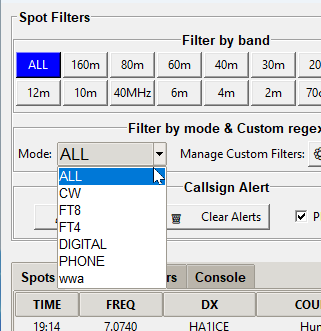
Use the dropdown menu next to “Callsign Filter”.
Available modes:
-
ALL – shows all spots
-
CW, FT8, FT4, DIGITAL, PHONE – standard modes
-
Custom Filters – your own RegEx-based filters
⚙️ Managing Custom Filters
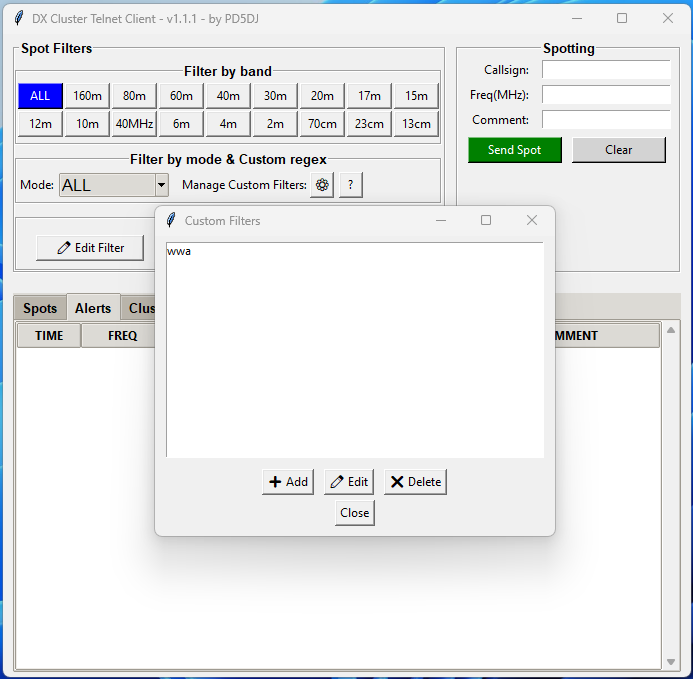
Click ⚙ to open the list of your custom filters.
There you can:
-
➕ add new filters
-
✏️ modify existing filters
-
❌ delete filters
Custom filters are saved and will be available immediately the next time the app starts.
Click ? for a detailed help window explaining RegEx (regular expressions).
🇬🇧 RegEx (Regular Expression) Manual for DXCluster
🔍 What is RegEx?
RegEx (short for Regular Expression) is a way to search for patterns in text.
In DXCluster you can use RegEx to filter the spot list by callsigns, countries, or words in comments.
Instead of entering one specific text (such as “PA”), RegEx allows you to search much more flexibly, for example:
-
“All Italian stations”
-
“All portable stations”
-
“Anything with YL or OM in the comment”
-
“Anything with a number in the call”
🧩 Where is it used in DXCluster?
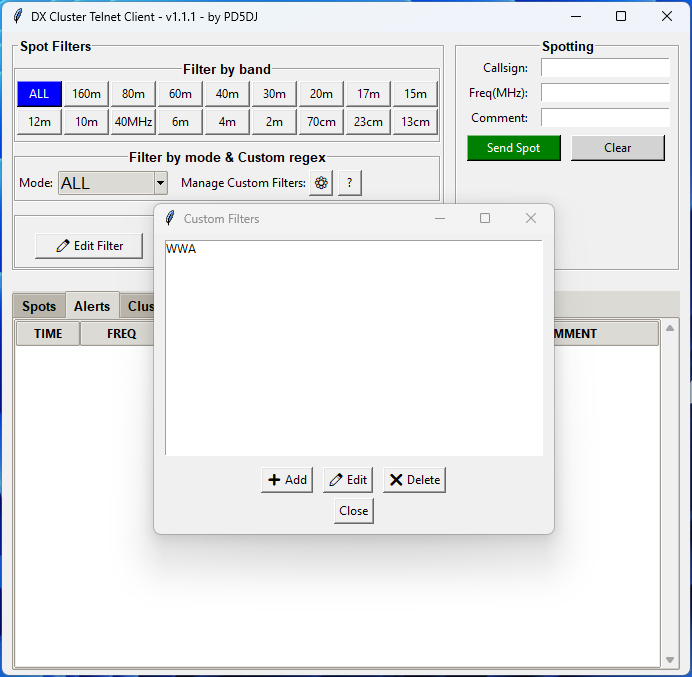
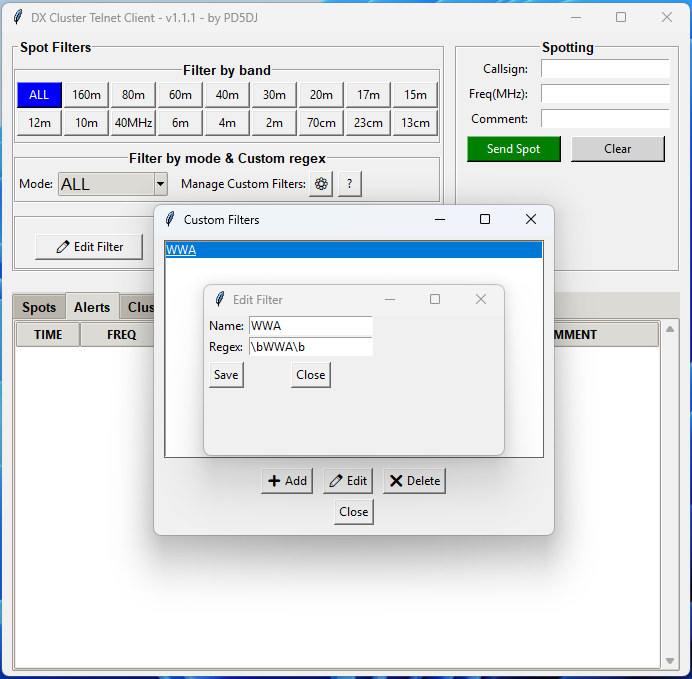
At the top of the window you see the mode dropdown (next to Callsign Filter).
There you can select your own Custom Filter.
These filters are managed via ⚙ → Manage Custom Filters.
There you specify:
-
A name (e.g. “Italy”)
-
A RegEx pattern (e.g.
^I)
Click Save, and the filter appears in the list.
When you select it, DXCluster will show only spots that match that pattern.
⚙️ Most Important RegEx Symbols
| Symbol | Meaning | Example | Result |
|---|---|---|---|
^ |
Start of the text | ^PA |
Anything starting with “PA” |
$ |
End of the text | /P$ |
Anything ending with “/P” |
. |
Any single character | P.A |
“P1A”, “PXA”, “PAA”, etc. |
* |
0 or more characters | PA.* |
Anything starting with “PA”, regardless of what follows |
+ |
1 or more characters | DL.+ |
DL followed by at least one character |
[] |
List of possible characters | ^[IU][0-9] |
Starts with I or U, followed by a digit |
{} |
Repetition count | [A-Z]{2} |
Exactly two uppercase letters |
| |
OR | PA|ON |
Matches “PA” or “ON” |
\b |
Word boundary | \bYL\b |
The word “YL” on its own |
() |
Grouping | ^(PA|ON) |
Starts with PA or ON |
.* |
“Anything in between” | .*DX.* |
Any line containing “DX” anywhere in the text |
🧠 Basic Examples
| Example | Meaning |
|---|---|
^PA |
All Dutch stations (PA prefix) |
^DL |
German stations |
^I |
Italian stations |
^G |
English stations |
^F.* |
French stations |
^OH[0-9] |
Finnish stations (OH followed by a digit) |
^EA[1-9]/ |
Spanish prefix with “/” (e.g. EA1/ON4ZZZ) |
^JA[0-9] |
Japanese stations |
^ZS[1-6] |
South African stations |
^VK[1-9] |
Australian stations |
^K[0-9] |
American stations |
^3D2 |
Fiji Islands |
^(5Z|9J) |
Kenya or Zambia |
.*/MM$ |
Maritime Mobile stations |
.*/P$ |
Portable stations |
.*\b(YL|OM)\b.* |
Contains YL or OM anywhere |
.*DX.* |
Contains “DX” anywhere |
[A-Z]{1,2}[0-9]{1,2}[A-Z]{1,3} |
General callsign structure (PA3XYZ, ON4ZZ, K9AA) |
💡 Advanced Examples
| Example | Meaning |
|---|---|
^[A-Z]{1,2}[0-9]{1,2}[A-Z]{1,3}/P$ |
Portable stations with a normal callsign structure only |
^ON[0-9]{1}.* |
Belgian stations with one digit |
^PA[0-9].*(QRP|P)$ |
PA stations operating QRP or /P |
^PD5DJ |
Your own callsign only |
.*25.* |
Anything containing the number 25 |
^(DL|F) |
German or French stations |
.*(CQ|TEST).* |
Anything containing CQ or TEST |
^9A.*(FT8|FT4) |
Croatian stations operating FT8 or FT4 |
.*DXC.* |
Anything containing DXC (e.g. PI4DXC) |
^PA[0-9]{1,2}[A-Z]+ |
Dutch callsigns with 1–2 digits followed by 1 or more letters |
🔎 Tips for Using RegEx
-
Test your filter online:
Go to https://regex101.com → Choose “Python” as the engine.
There you can test your pattern with real examples. -
Case-insensitive matching
DXCluster is not case-sensitive.
Sopa,Pa,PAall behave the same. -
Combine smartly
You can combine multiple conditions, for example:-
^PA.*FT8→ All Dutch FT8 spots -
^DL.*CQ→ German CQ calls -
.*(YL|OM).*FT8→ Spots containing YL or OM in comment and FT8
-
-
Use start and end markers (
^and$) whenever possible
This prevents overly broad matches. -
Be aware of spaces
RegEx treats a space as a literal character. Use.*to match flexibly around them.
💬 RegEx Summary
| Goal | RegEx |
|---|---|
| Only Dutch stations | ^PA |
| Only portable stations | /P$ |
| Only FT8 in comment | .*FT8.* |
| Stations with “CQ” in comment | .*CQ.* |
| American stations | ^K[0-9] |
| All Japanese stations | ^JA[0-9] |
| Belgian stations (ON) | ^ON |
| Own callsign | ^PD5DJ |
| YL or OM in text | .*(YL|OM).* |
⚠️ Callsign Alert
Callsign Alerts window displays all favorite stations when spotted, grouped in one list.
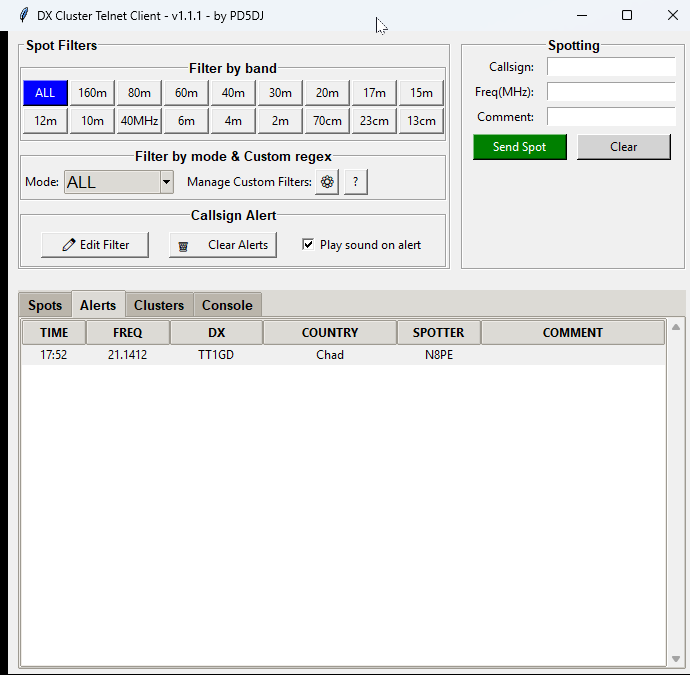
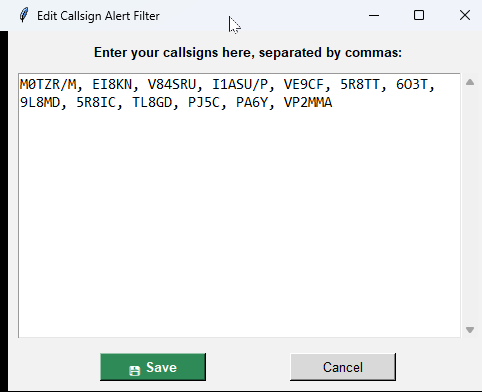
To add callsigns, click Edit Filter.
To clear alerts, click Clear Alerts.
Check Play sound on alert to play an audio signal when a favorite appears.

In this list you can manually add all favorite callsigns, separated by “, ” (comma).
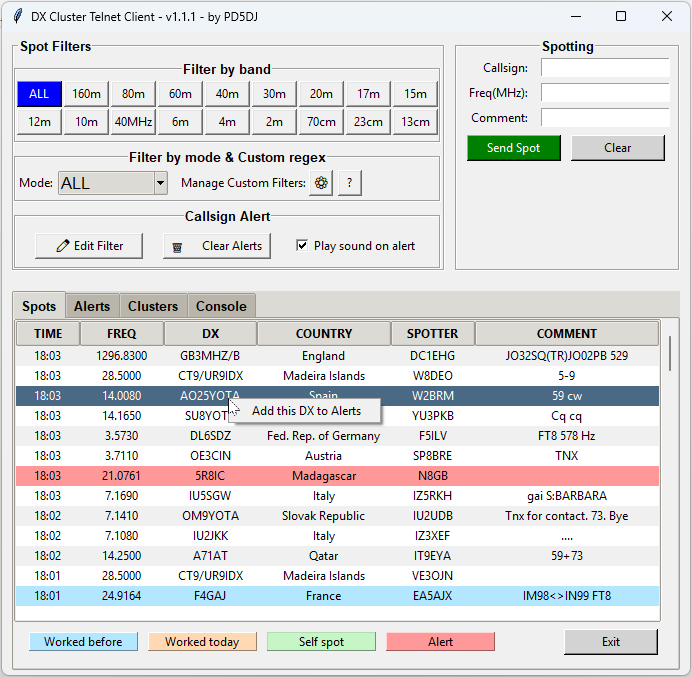
You can also save a callsign directly from the spot window.
Right-click a spot and choose “Add this DX to Alerts”.
Sending a Spot
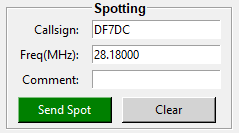
In the Spotting section you can send a spot to the cluster.
If MiniBook already has a callsign entered,
this callsign and the current frequency from your transceiver are automatically copied into the DXCluster entry fields.
This allows quick and easy spotting of the station you are currently working.
Fill in (or verify) the following fields:
-
Callsign of the station you want to report
-
Frequency (MHz)
-
Comment (optional)
Click Send Spot to transmit it.
The spot appears in the console and becomes visible to other cluster users.
Use Clear to empty the fields.
MiniBook Integration

When you open DXCluster from MiniBook:
-
Clicking a spot automatically sends the frequency and mode to your transceiver (via rigctl).
-
Spots are marked with:
-
💙 Worked before
-
🧡 Worked today
-
💚 Self spot
- ❤️ Alert (from Callsign Alert favorites)
-