Guide: Station Setup
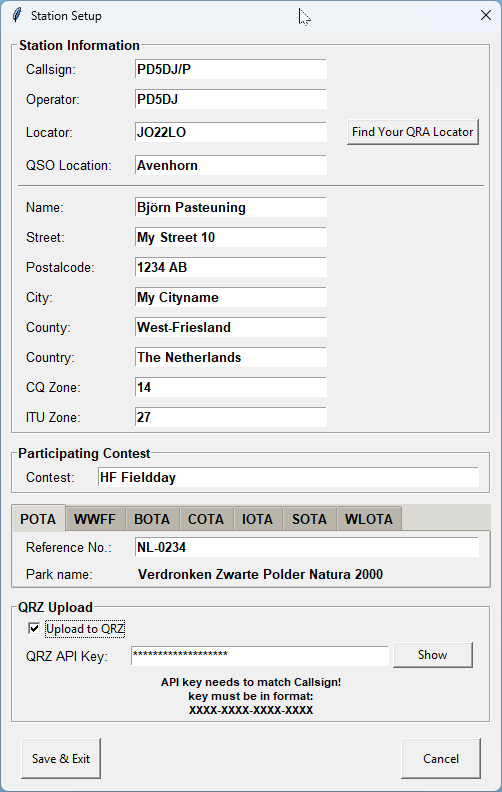
The Station Setup window stores all details of the station you are operating with.
This information is used in your logbook, for spotting, and when uploading QSOs to online services like QRZ.com.
🔹 Station Information
-
Callsign – The callsign used on air (e.g., PD5DJ/P).
⚠️ Important: If you use the QRZ Upload feature, the callsign here must exactly match the callsign linked to your QRZ API Key. -
Operator – The operator’s personal callsign or name.
-
Locator – Your QTH locator (e.g., JO22LO). Use Find Your QRA Locator to determine it automatically.
-
QSO Location – The town or site from which you operate.
🔹 Personal Information
Enter your address and location details as used on your log or contest forms:
-
Name – Operator’s name
-
Street / Postcode / City / County / Country – Address
-
CQ Zone / ITU Zone – Zone numbers for contest/DX references
🔹 Participating Contest
Select the contest you are participating in (e.g., HF Fieldday).
🔹 POTA / WWFF / BOTA / COTA / IOTA / SOTA / WLOTA
If operating from a park or special location, fill in the reference and park name.
Example:
-
Reference No. NL-0234
-
Park name Verdronken Zwarte Polder Natura 2000
🔹 QRZ Upload
Use this section to automatically upload QSOs to QRZ.com:
-
Upload to QRZ – Enable to activate uploads.
-
QRZ API Key – Your personal key from QRZ.com (found in your account settings).
Format:XXXX-XXXX-XXXX-XXXX
⚠️ The key must match the same callsign as entered under Callsign, otherwise the upload will fail.
🔹 Buttons
-
Save & Exit – Saves all data and closes the window.
-
Cancel – Exits without saving.